AyahInk

How to use the Qur'an Journal

Everything the journal can do, step by step, with pictures of the journal itself. The red numbers in each picture match the steps beside it. Every section has a link that opens that exact place in the journal.

Open the journal →Download as PDF ↓

The cover

The first page you see. Everything on it, from top to bottom.

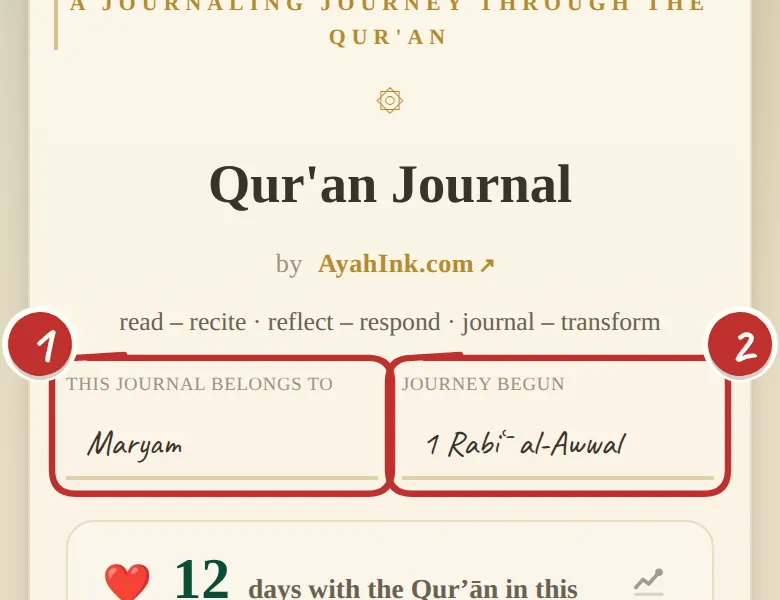
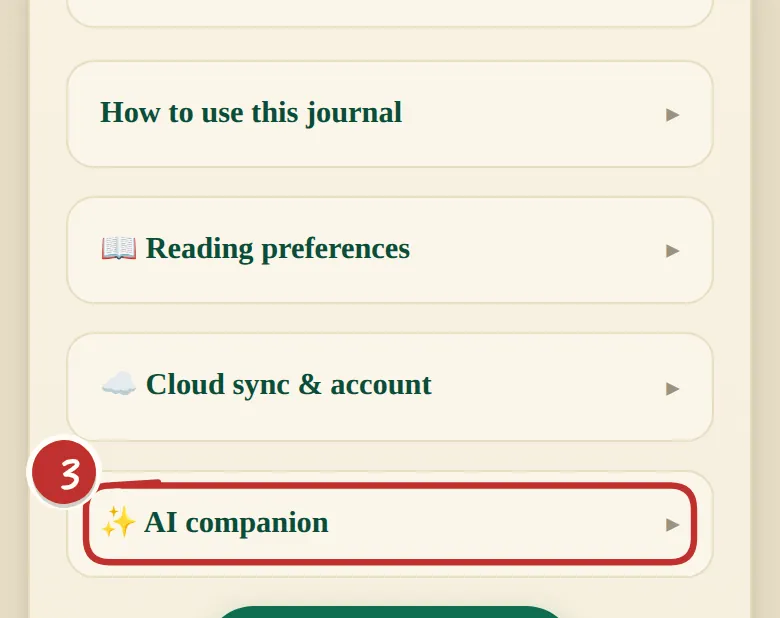
The journal's cover: 'This journal belongs to Maryam' and 'Journey begun 1 Rabīʿ al-Awwal', marked 1 and 2 The cards further down the cover, with the AI companion card marked 3

The cover

Your own Qur'an journal

Open ayahink.com/journal in any browser. All 114 surahs are there, and it keeps working with no internet.

  1. Write your name on the cover — it's your journal.
  2. Note the day you began, so you can look back on how far you've come.
  3. Link your AI companion from the cover too: tap ✨ AI companion → Connect an AI model → choose your service, paste your key, Save. Step by step below.
Open this in the journal ↗
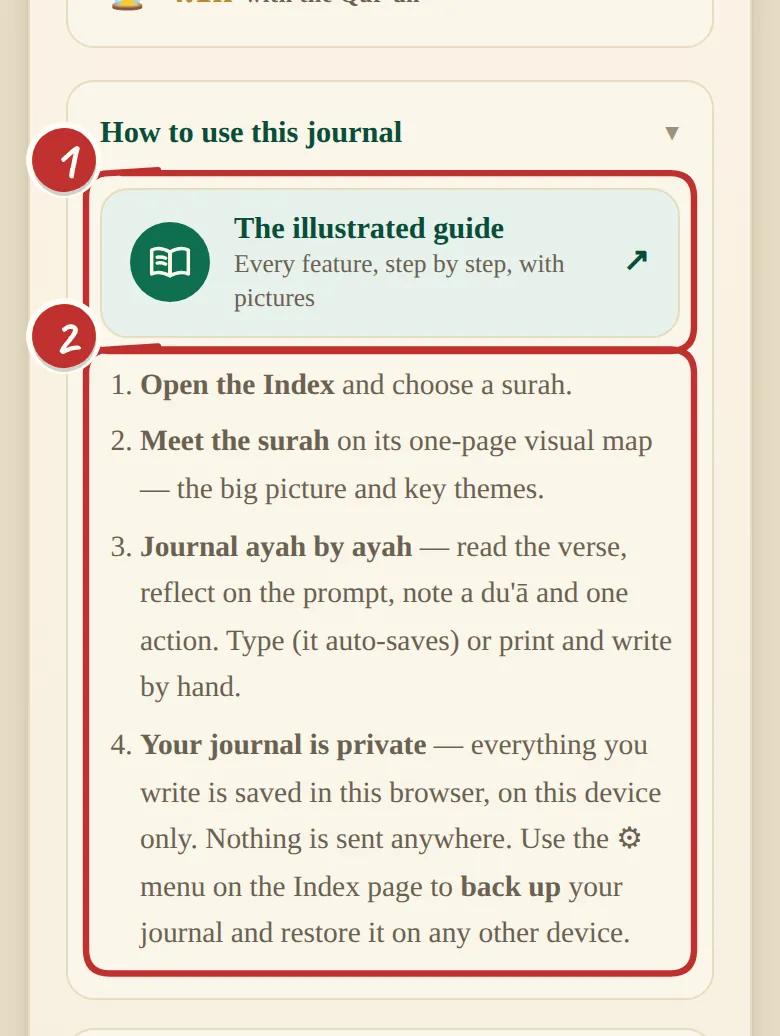
The 'How to use this journal' card on the cover, with the illustrated guide link at the top

The cover

It shows you how

Tap How to use this journal on the cover.

  1. The illustrated guide — this page, one tap from the journal.
  2. Four short steps: pick a surah, meet its map, then journal ayah by ayah — read, reflect, a du'ā and one action.

Everything you write is saved on this device. Nothing is sent anywhere unless you choose to turn on sync.

Open this in the journal ↗
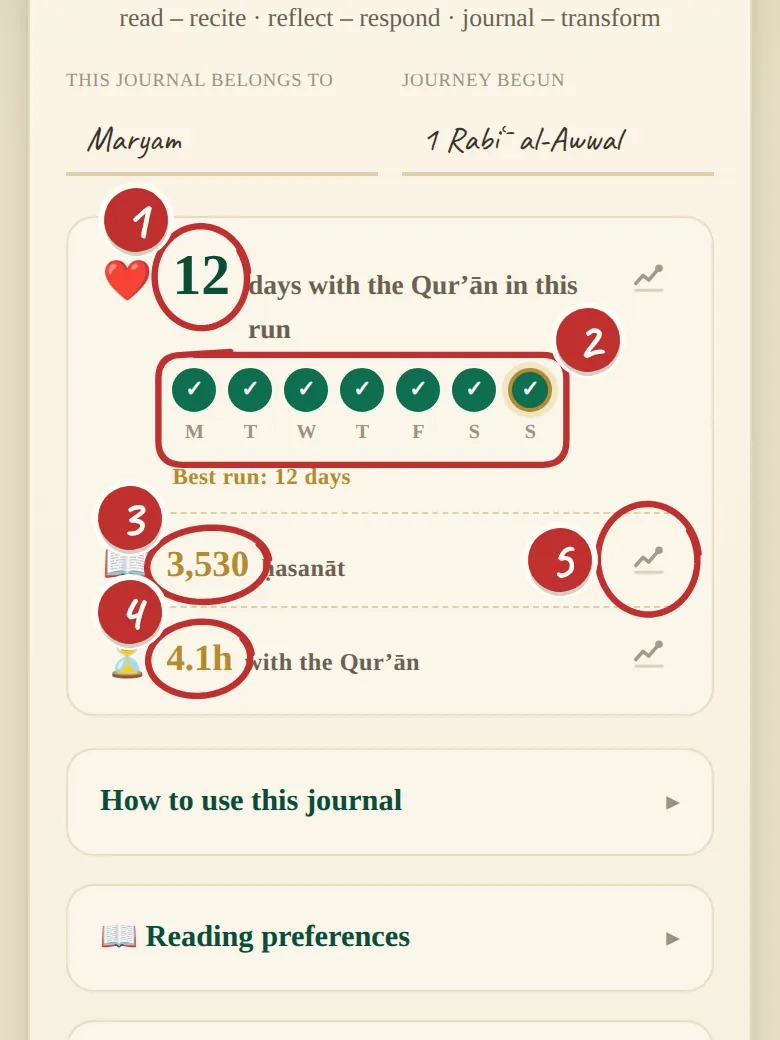
The streak card: days in the current run, the week's ticks, ḥasanāt, time spent and a chart

The cover

Your streak, ḥasanāt and time

Right on the cover — gentle encouragement, not pressure.

  1. Days spent with the Qur'an in this run. Missing up to 3 days in a row doesn't break it.
  2. The week — a tick for each day you read or wrote.
  3. Ḥasanāt — ten per Arabic letter of each ayah you read or journal, counted from the app's own text. Simple arithmetic.
  4. Time — counted only while you're actually there.
  5. Tap any figure to see its history.
Open this in the journal ↗
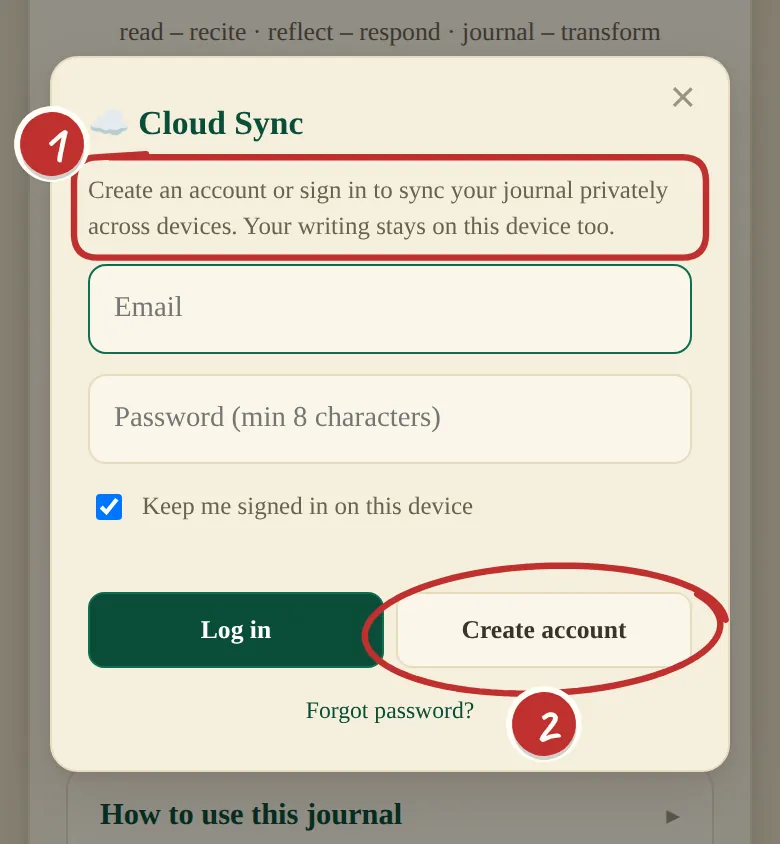
The Cloud Sync window: 'sync your journal privately across devices', with Log in and Create account

The cover ★ Premium

Take your journal to every device

Tap ☁️ Cloud sync & account on the cover.

  1. Your progress travels with you — writing, highlights, drawings, voice notes, notes, bookmarks and your streak, on your phone, tablet and laptop.
  2. Create account once, then log in on each device.

Premium includes ☁️ sync across all your devices · 🔒 optional end-to-end encryption — we can't read it, and can't recover it, so keep your recovery code · ✨ the AI companion · and more on the way.

Open this in the journal ↗
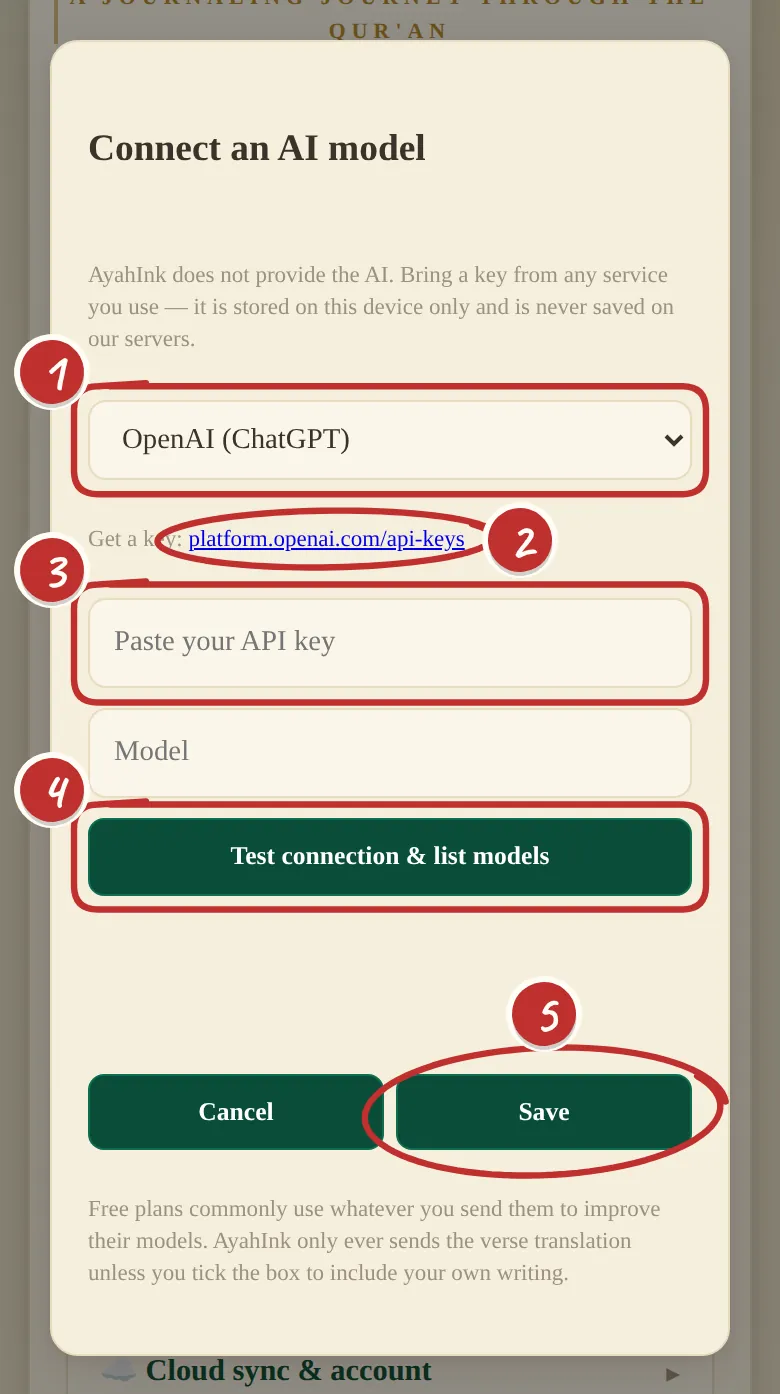
The 'Connect an AI model' window: service, get a key, paste your key, test connection, save

The cover ★ Premium

Link your AI companion — it only asks questions

On the cover, tap ✨ AI companion → Connect an AI model.

  1. Choose your service — OpenAI, Claude, Gemini, Groq and others.
  2. Get a key — the link takes you to that service's key page.
  3. Paste your key. It stays on this device, never on our servers.
  4. Test connection — it checks the key and lists the models you can use.
  5. Save. Now it can suggest extra questions on any ayah.

It never explains verses, quotes scripture or gives rulings. It only asks — the reflecting is yours.

Open this in the journal ↗
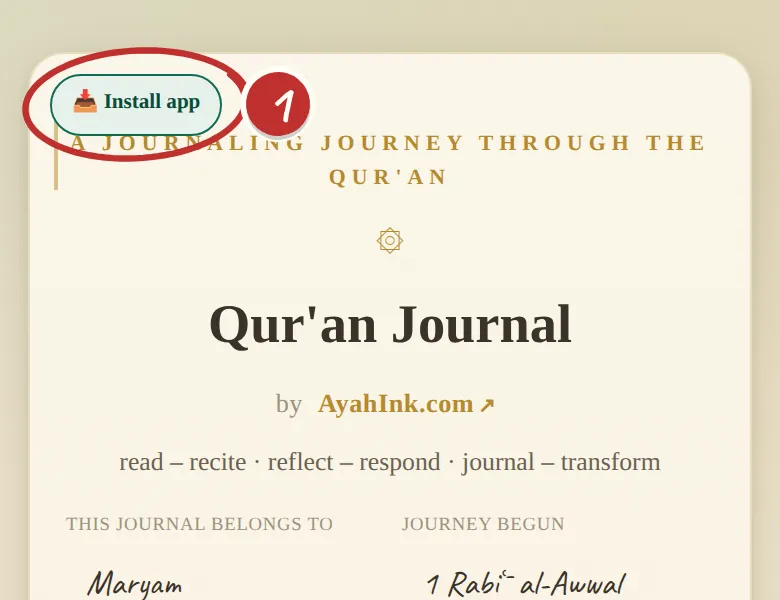
The 'Install app' button at the top of the cover

The cover

Put it on your home screen, like an app

  1. 📥 Install app appears on the cover whenever your browser can install it. One tap.

Or, with ayahink.com/journal open:

Android · Chrome — tap Install app on the cover, or the ⋮ menu → Install app / Add to Home screen.
iPhone & iPad · Safari — tap Share (the square with an arrow) → Add to Home Screen → Add.
Windows · Chrome or Edge — tap Install app on the cover, or the install icon at the right of the address bar. It then opens from the Start menu.
Open this in the journal ↗

The Index

Tap Open the Index at the foot of the cover.

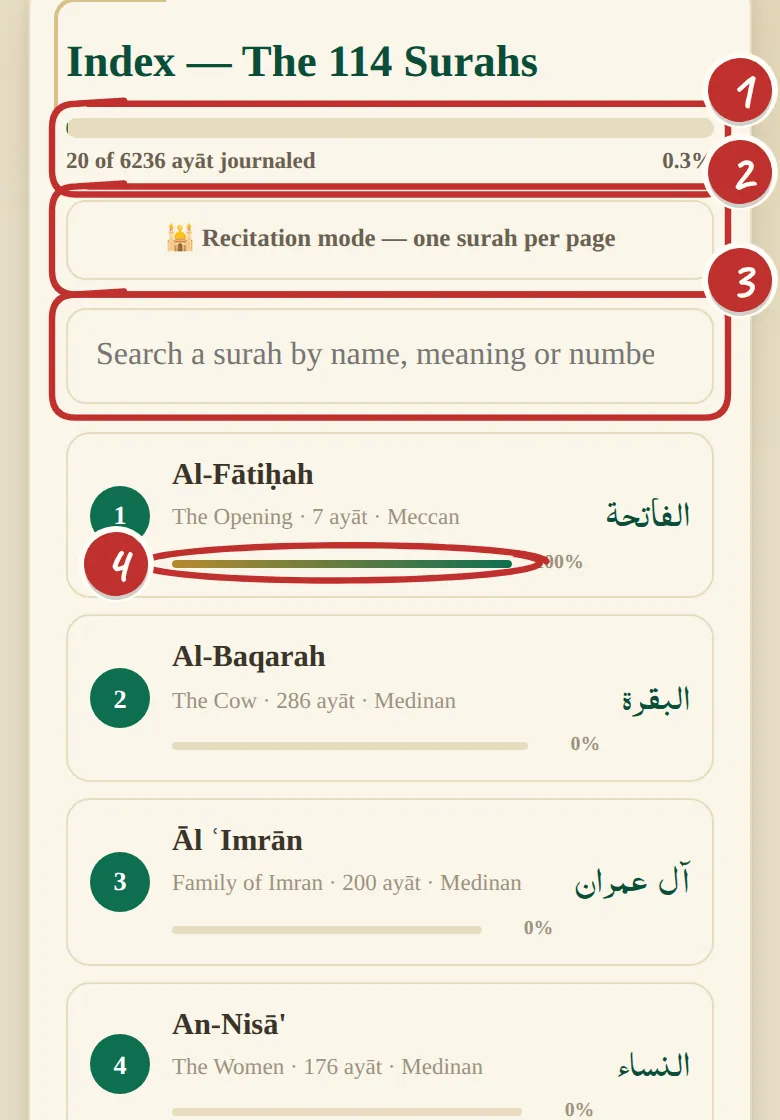
The Index: its title, overall progress bar, recitation mode switch, search box and surah cards with progress

The Index

All 114 surahs

Your home base — tap any surah to open it.

  1. Your progress across the whole Qur'an — here, 20 of 6,236 āyāt.
  2. Recitation mode — switch it on to read a surah as one flowing mushaf page.
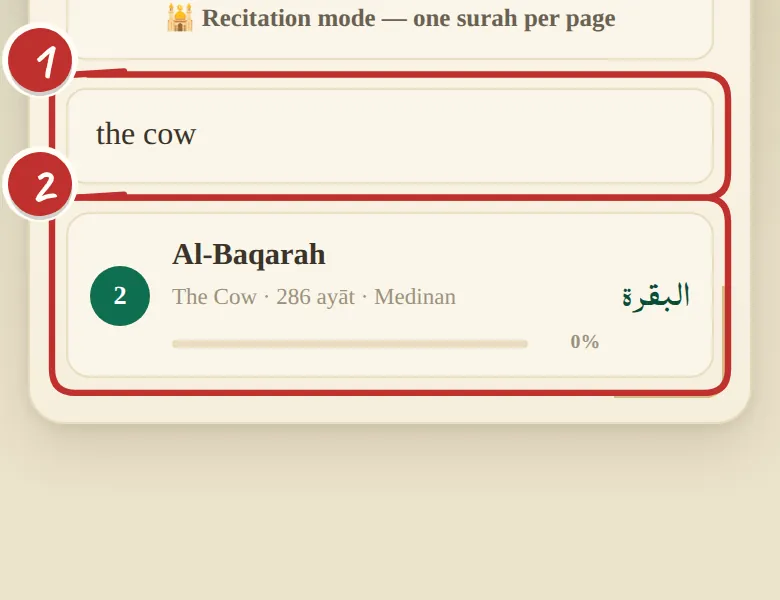
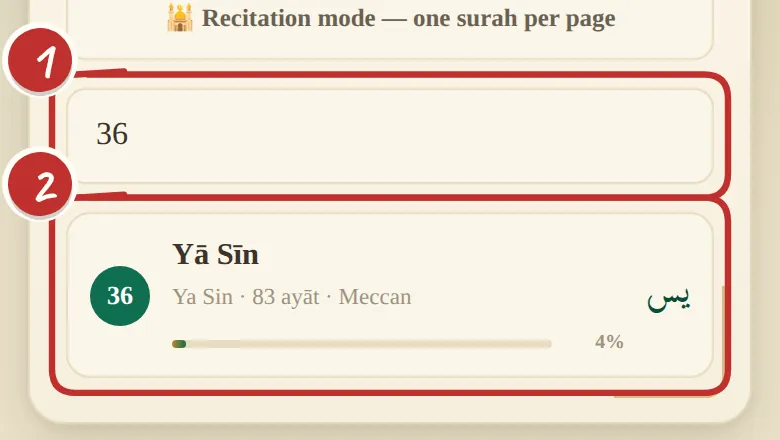
  3. Search by name, meaning or number.
  4. Each surah shows how much of it you've journalled.
Open this in the journal ↗
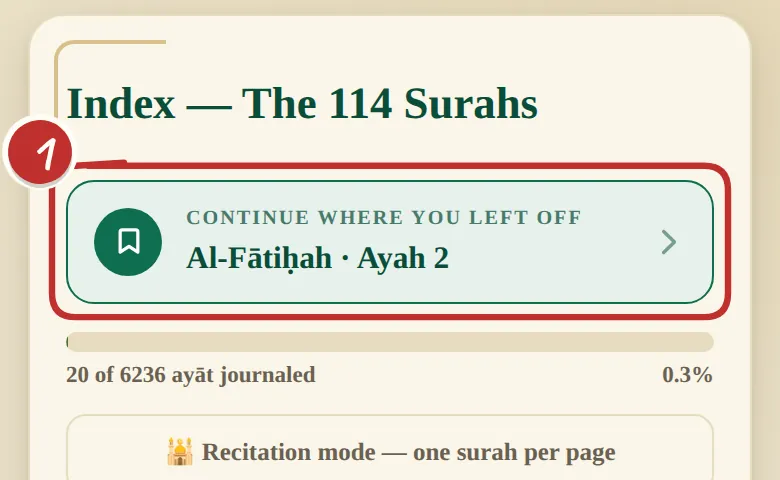
The 'Continue where you left off' button at the top of the Index

The Index

Continue where you left off

Close the app mid-surah and come back tomorrow — it opens where you were.

  1. One tap takes you back — even to a single ayah in recitation mode. The same button is in the bottom bar on every page.
Open this in the journal ↗
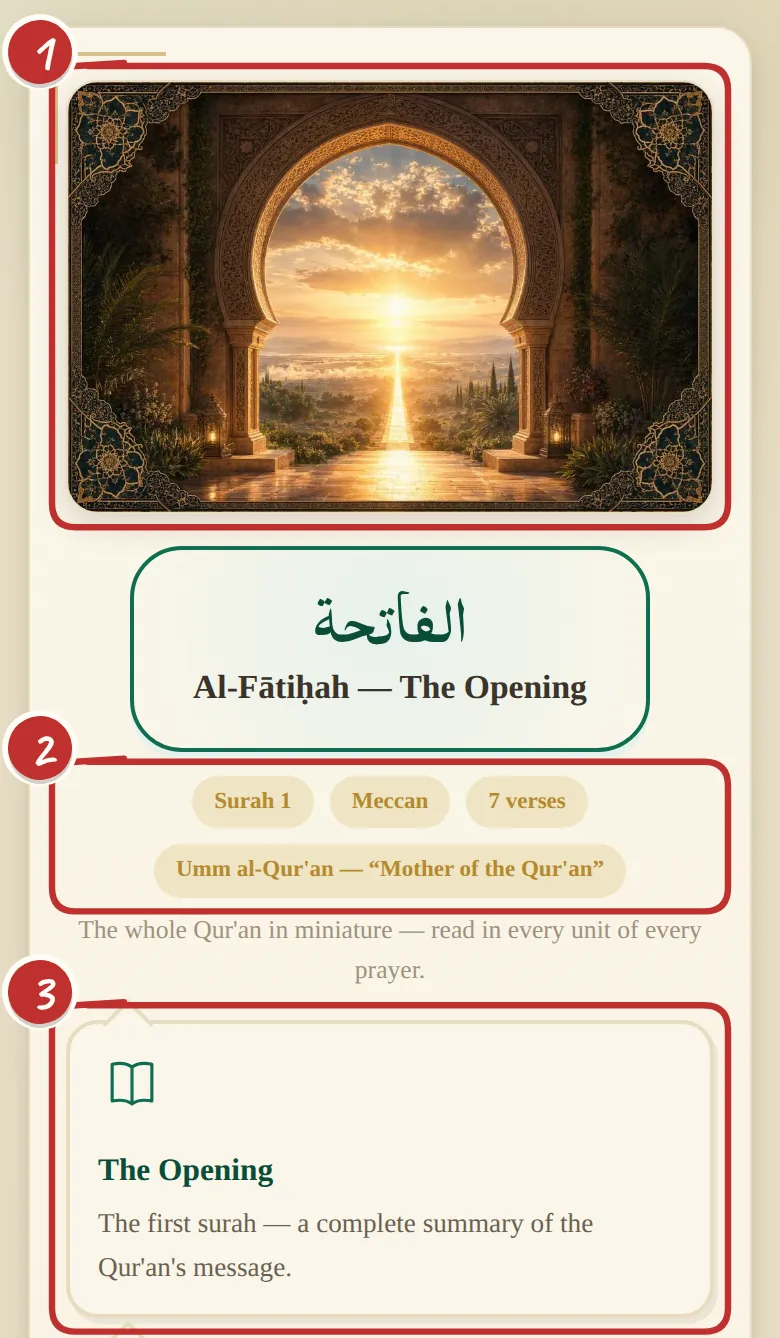
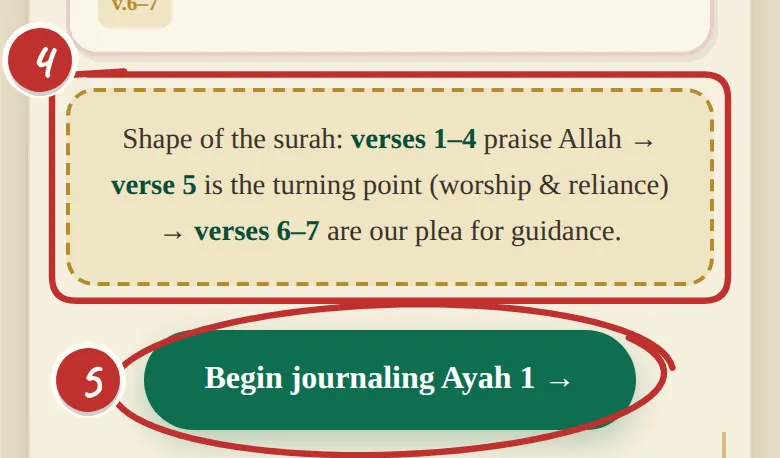
The top of Al-Fātiḥah's map: its artwork, its name, its facts and its first theme card The end of the map: the shape of the surah and the 'Begin journaling Ayah 1' button

The Index

Every surah opens with a map

  1. Its own artwork.
  2. The facts — Meccan or Medinan, how many verses, its other name.
  3. Its big themes, one card each.
  4. The shape of the surah, from beginning to end.
  5. Begin journaling takes you to ayah 1.
Open this in the journal ↗

Journalling an ayah

All 6,236 āyāt have a page of their own. Swipe, or use the arrows, to turn to the next.

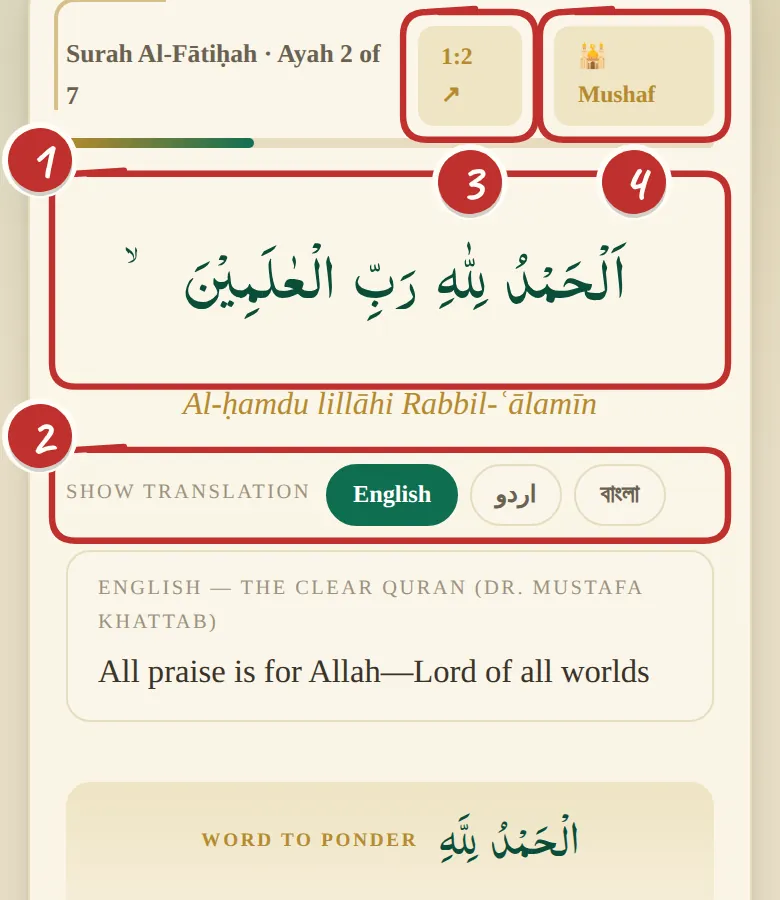
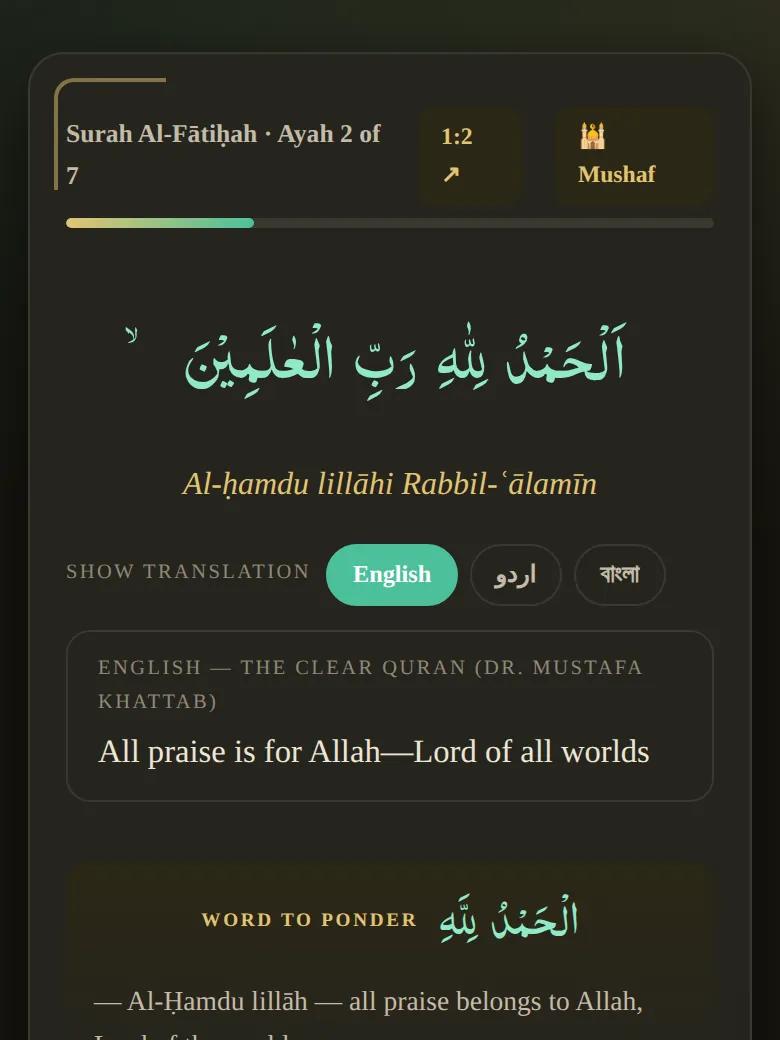
The top of an ayah page: the Arabic, transliteration, translation switches, the quran.com link and the Mushaf button

Your page for every ayah

One page for each ayah

  1. The ayah in Arabic, with a transliteration beneath it.
  2. Translation switches — English, Urdu, Bangla.
  3. Open this ayah on quran.com to listen or study further.
  4. Mushaf — see this ayah in the flowing surah.
Open this in the journal ↗
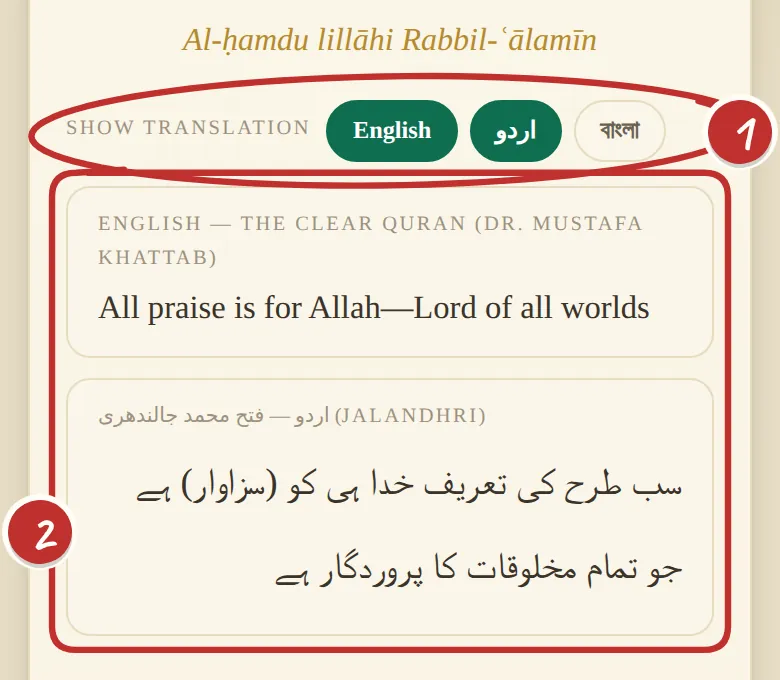
An ayah showing English and Urdu translations together, with the English, Urdu and Bangla switches circled

Your page for every ayah

Three languages — any combination

  1. English, اردو, বাংলা — each is its own switch. Turn on one, two, all three, or none.
  2. Every language you switch on shows together under the ayah — here, English and Urdu.
Open this in the journal ↗
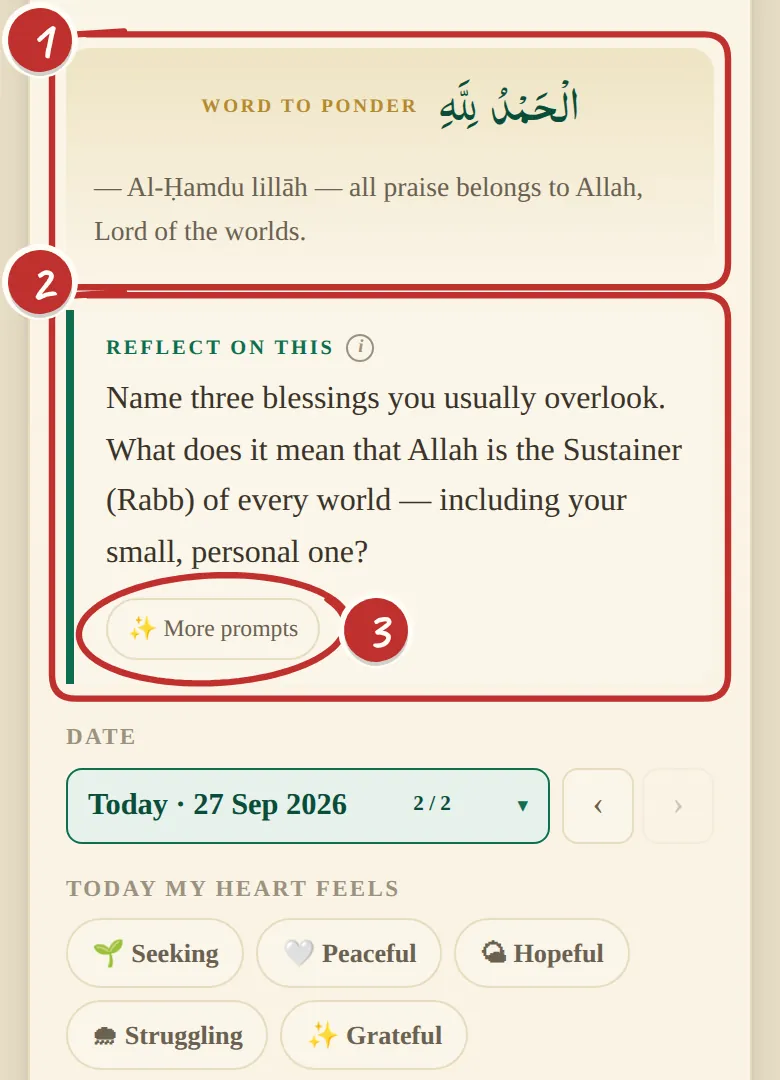
'Word to ponder' and the 'Reflect on this' prompt with the More prompts button

Your page for every ayah

A word to hold, and a question for you

So you never face a blank page.

  1. Word to ponder — one word from the ayah to carry with you.
  2. Reflect on this — a question written for this exact ayah.
  3. More prompts — want a different angle? Tap for more.
Open this in the journal ↗

If you don't know where to begin

6,236 prompts

One written for every single ayah — a question to sit with, waiting on the page. Written and reviewed by hand, not generated, and the same for every reader.

See a prompt in the journal ↗

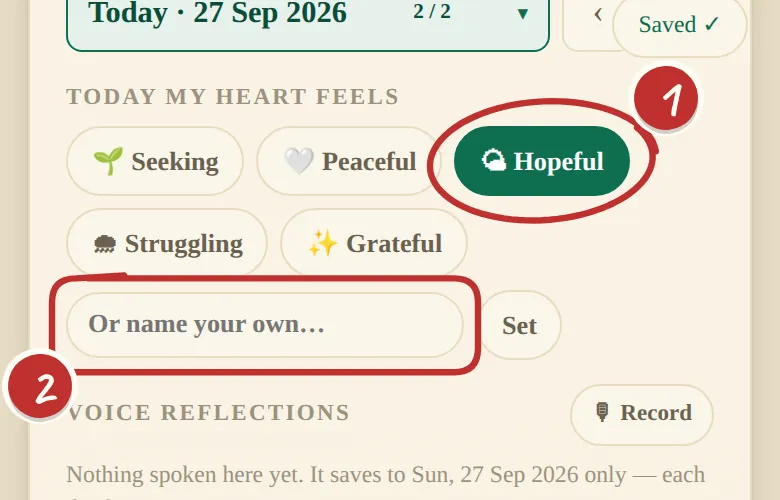
'Today my heart feels' with mood chips and 'Or name your own'

Your page for every ayah

How is your heart today?

A one-tap check-in. Looking back later, you'll see how you felt when you read each ayah.

  1. Tap Seeking, Peaceful, Hopeful, Struggling or Grateful…
  2. …or name your own feeling and tap Set.
Open this in the journal ↗
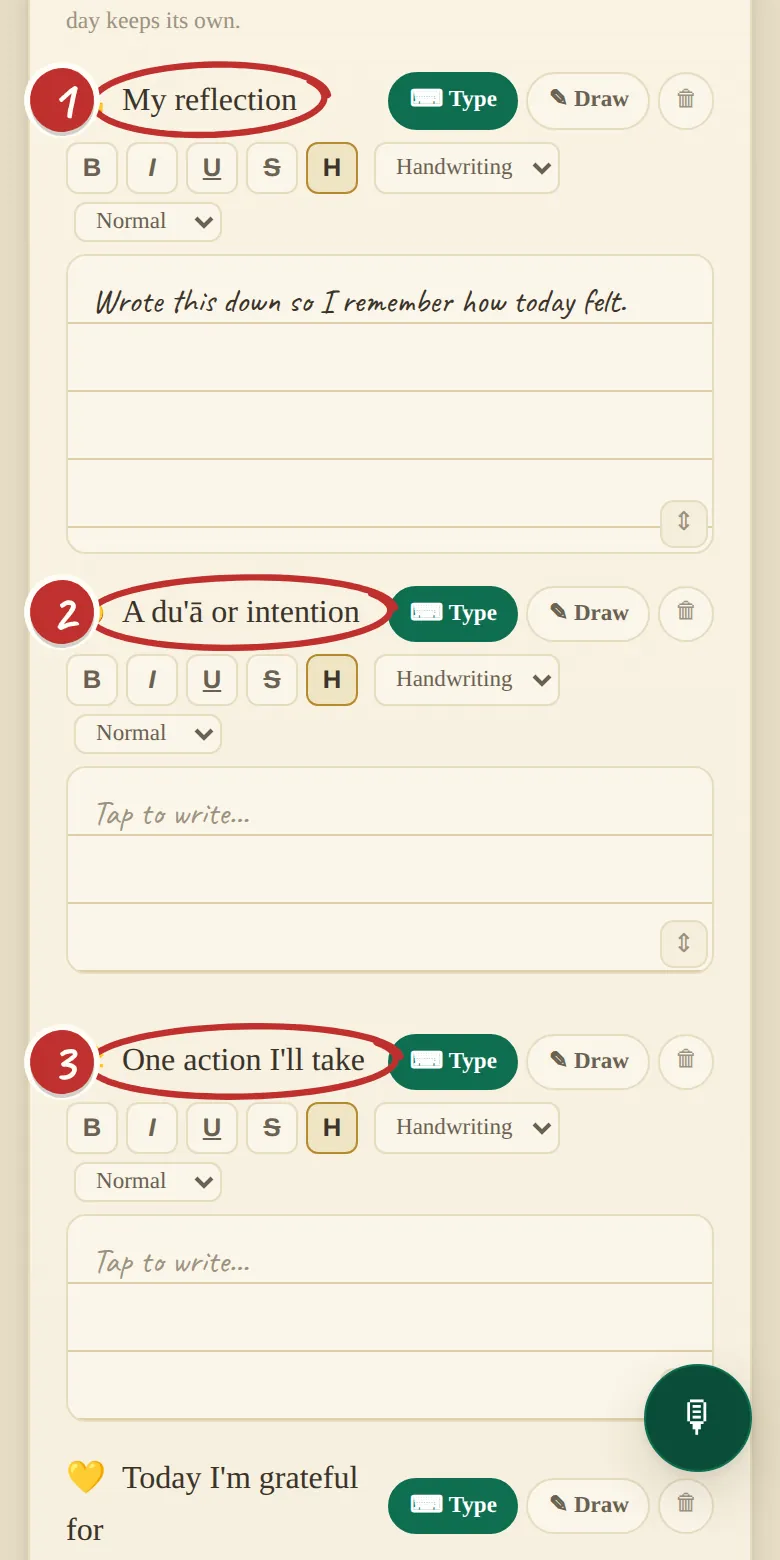
The writing boxes: My reflection, A du'ā or intention, One action I'll take, Today I'm grateful for, and + Add a section

Your page for every ayah

Four boxes to write in

Fill one, or all four. Everything saves as you type — there is no save button anywhere.

  1. My reflection — what the ayah stirred in you.
  2. A du'ā or intention — what you want to ask for.
  3. One action I'll take — small and doable today.

There's also Today I'm grateful for — and + Add a section for anything else you want to track.

Open this in the journal ↗
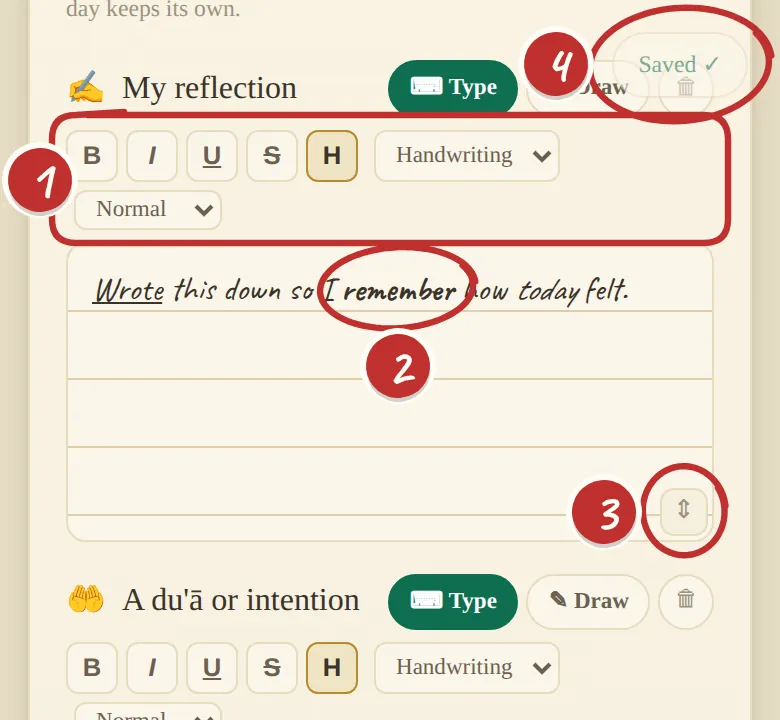
A writing box with the formatting toolbar, bold and highlighted words, the resize corner and the Saved note

Writing tools

Write it your way

  1. The toolbar: bold, italic, underline, strike-through, highlight, plus a font and a size.
  2. Select some words, then tap — just like a phone's notes app.
  3. Drag the corner to make the box bigger. It remembers.
  4. "Saved ✓" — there's no save button to forget.
Open this in the journal ↗
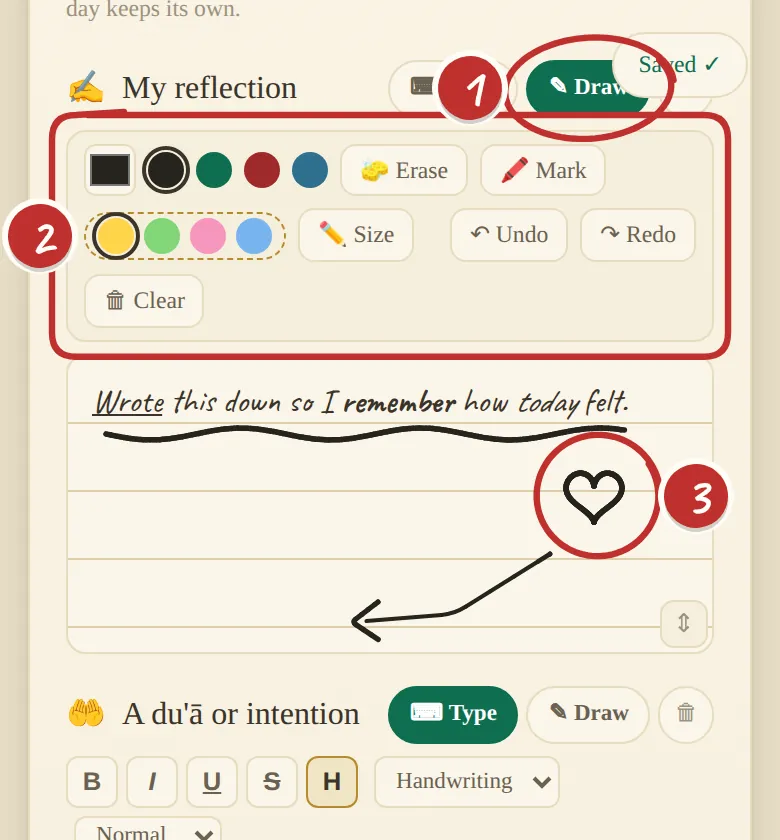
Draw mode: the Draw/Type switch, the ink toolbar, and a drawing on the ruled page

Writing tools

Draw and handwrite

Made for a finger, a stylus or a tablet pen.

  1. Tap Draw on any box. Tap Type to go back.
  2. Pen colours, Erase, Mark (a highlighter in four colours), Size, Undo, Redo, Clear.
  3. Your drawing sits on the lines, over anything you typed.
Open this in the journal ↗
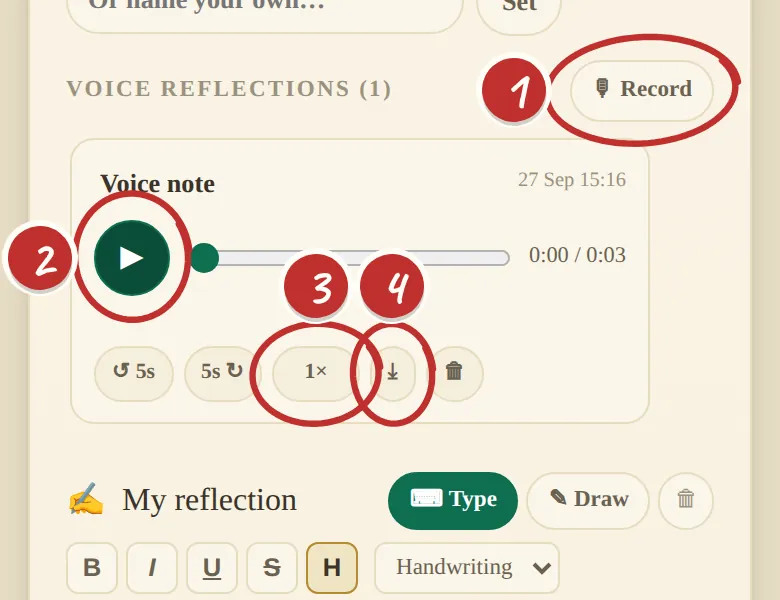
A voice note: the recorder and the player with play, skip, speed and save controls

Writing tools

Or just say it

Tap the green microphone on any ayah and speak your reflection.

  1. Record, pause if you need to, then Stop and save.
  2. Play it back and skip 5 seconds either way.
  3. Change the speed.
  4. Save the recording to your phone.
Open this in the journal ↗
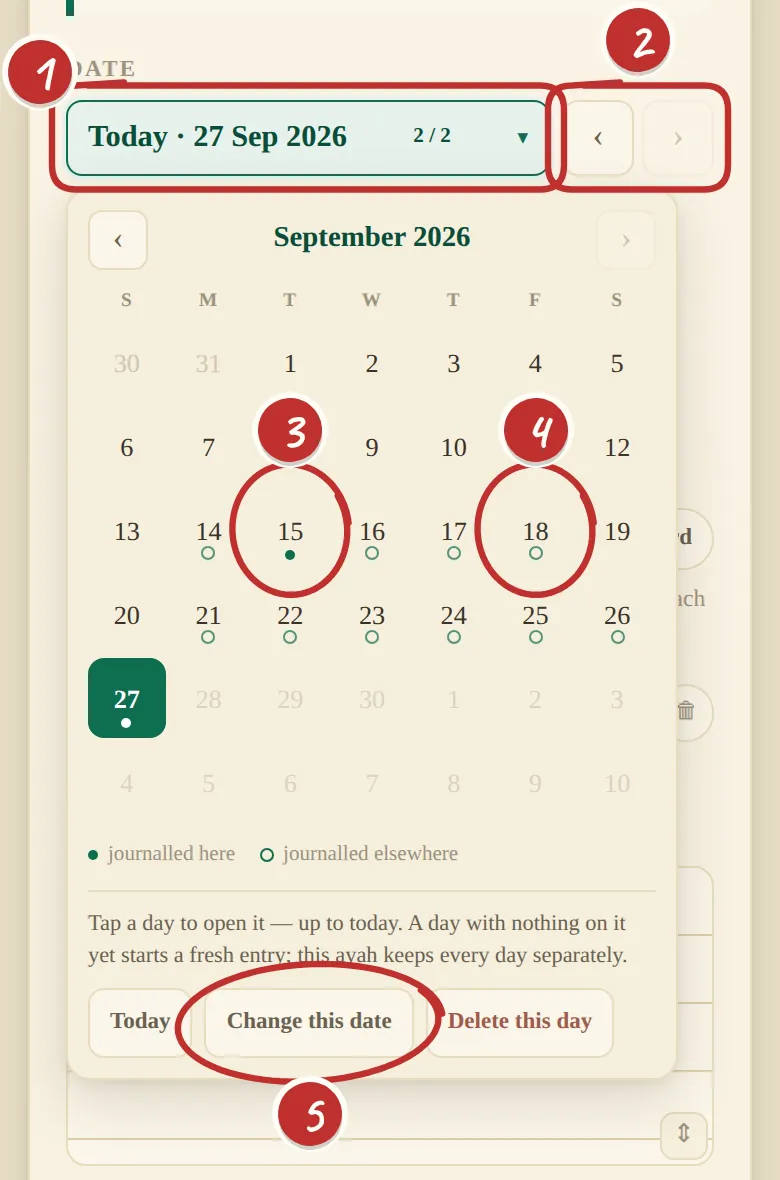
The day bar and calendar on an ayah, showing filled and hollow dots

Writing tools

Every day gets its own page

Come back to the same ayah next Ramaḍān and write afresh — last year's words are still there.

  1. Which day you're looking at.
  2. Step back or forward through the days on this ayah.
  3. Filled dot — you wrote on this ayah that day.
  4. Hollow dot — you wrote on a different ayah that day.
  5. Change the date of an entry, or delete a day.
Open this in the journal ↗
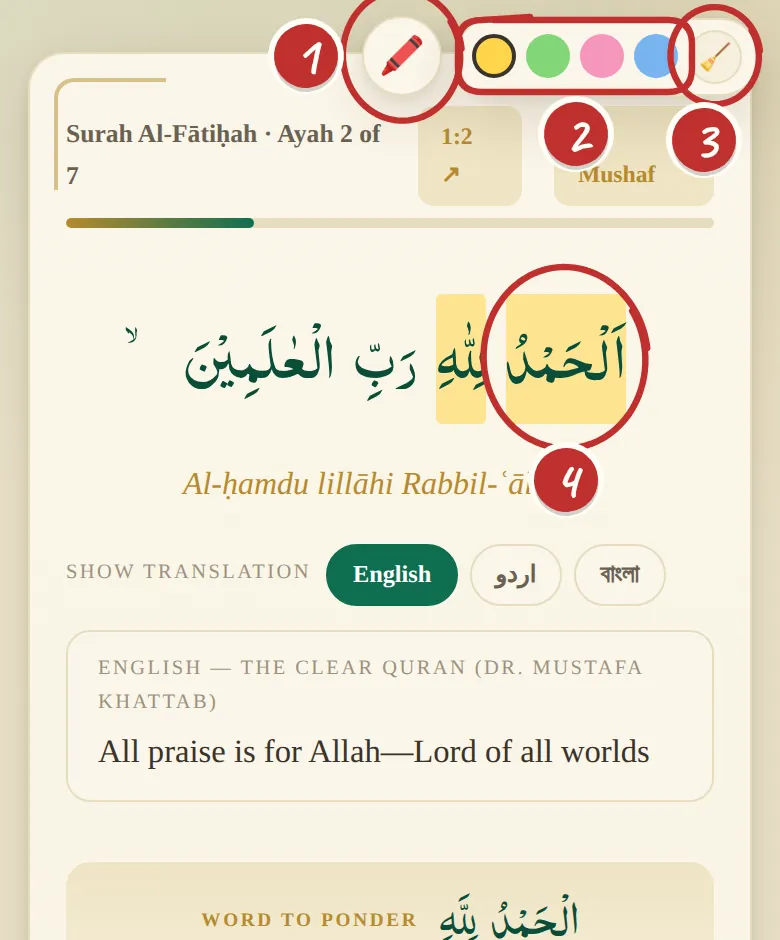
An ayah page with words of the Arabic highlighted, and the highlighter's four colours and eraser

Highlighting

Highlight the Arabic

Mark the words that caught you — on the Arabic, the transliteration or the translation.

  1. Tap the highlighter.
  2. Pick one of four colours — yellow, green, pink, blue.
  3. The eraser takes a highlight off again.
  4. Select the words — they stay highlighted every time you come back.
Open this in the journal ↗
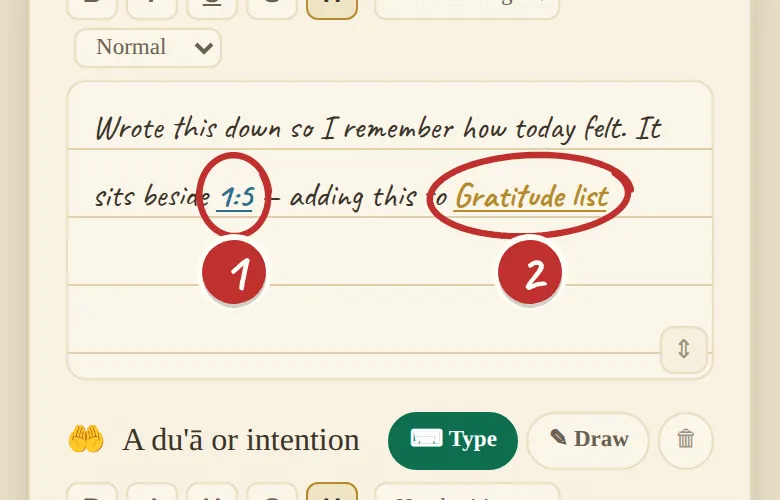
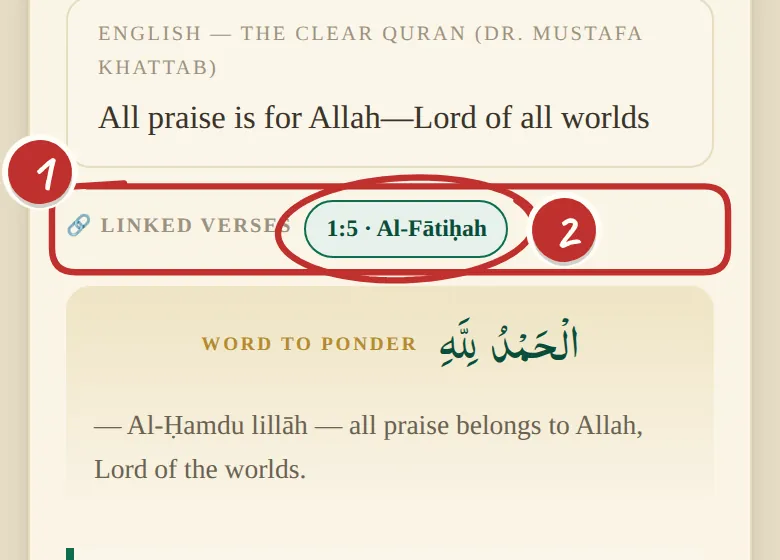
The 'Linked verses' bar on ayah 1:2, showing a link to 1:5

Linking your thoughts

The ayah now shows its links

  1. A 🔗 Linked verses bar appears on the ayah.
  2. Tap it to jump straight there.
Open this in the journal ↗
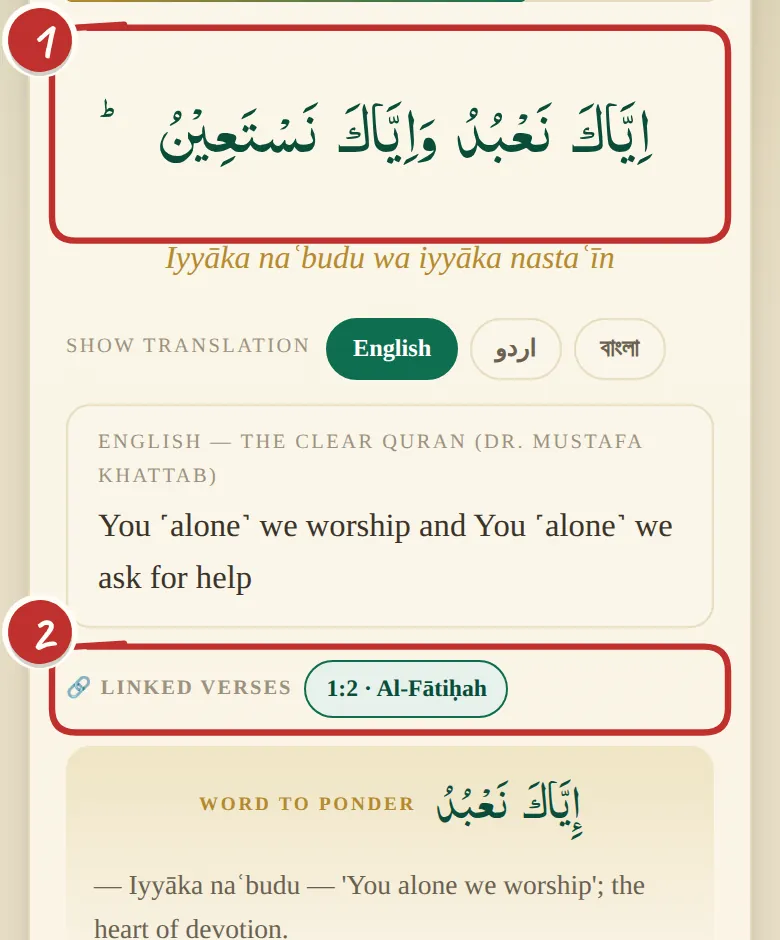
Ayah 1:5 with a 'Linked verses' bar pointing back to 1:2

Linking your thoughts

…and the link works both ways

  1. Now you're on 1:5…
  2. …and it points back to 1:2, where you wrote the link.

Changed your mind? Delete the [1:5] from your writing and both links disappear by themselves.

Open this in the journal ↗
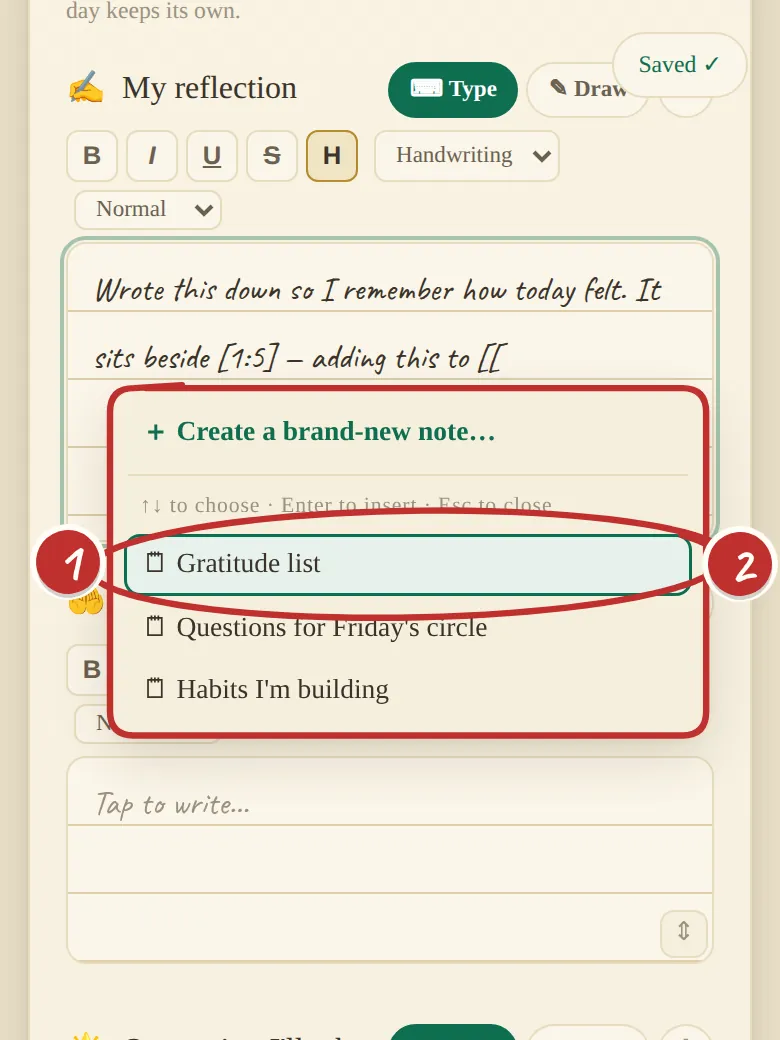
Typing [[ in a reflection opens a list of notes with 'Create a brand-new note'

Linking your thoughts

Link a note from any ayah

While writing a reflection, type two square brackets: [[

  1. A list pops up with your notes — or create a brand-new one right there.
  2. Pick one, and the link is written in for you.
Open this in the journal ↗

Recitation mode

Not journalling today? Read a whole surah as one flowing page, like a mushaf.

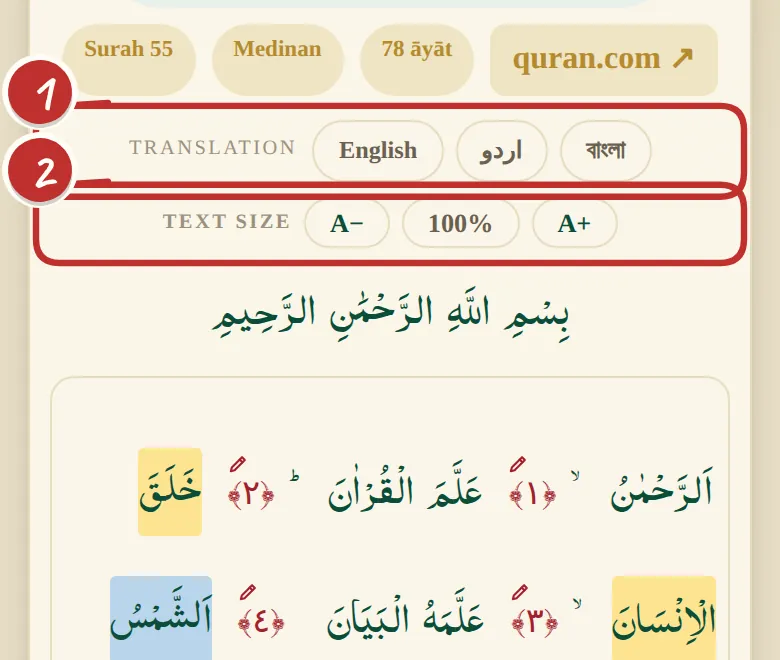
The top of recitation mode: translation toggles and text size controls

Recitation mode

Read a whole surah

Switch on recitation mode in the Index, then open any surah.

  1. Add English, Urdu or Bangla alongside — or read the Arabic alone.
  2. Make the text bigger or smaller.
Open this in the journal ↗
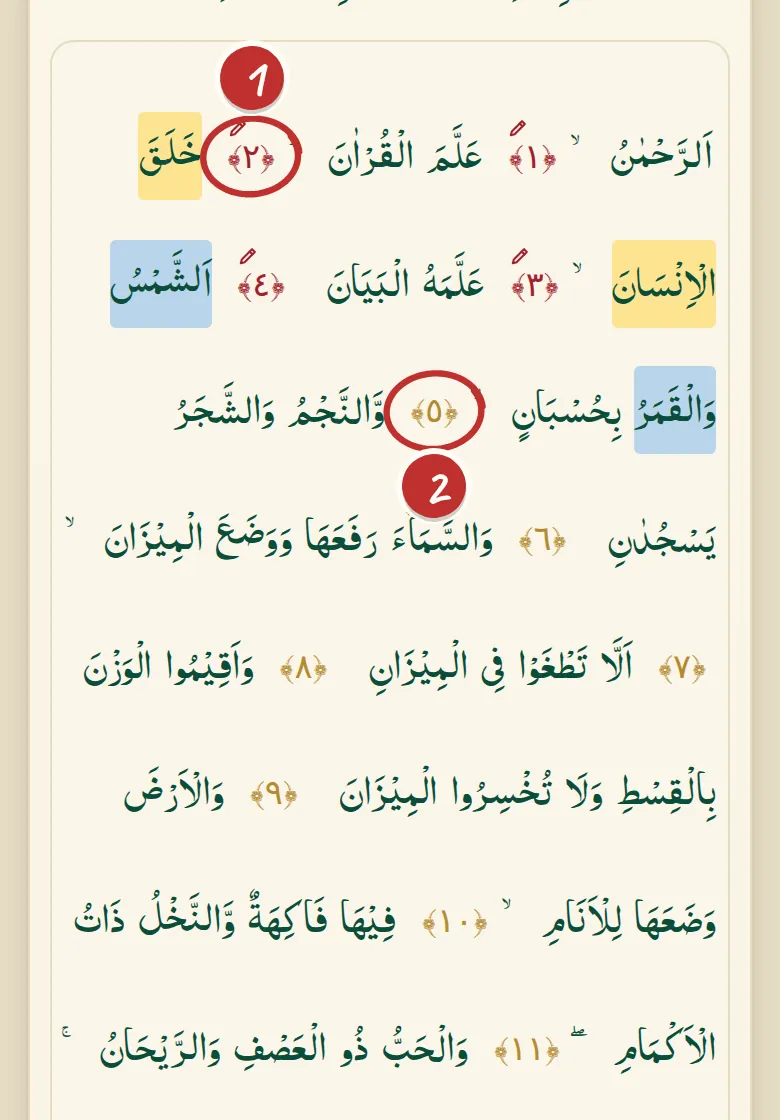
Recitation mode: journalled āyāt have a red number with a small pen above it; the others are gold

Recitation mode

See where you've already been

  1. A red number with a small pen above it — you've journalled on this ayah.
  2. A gold number — not yet. Tap any ayah number to open its journal page.
Open this in the journal ↗
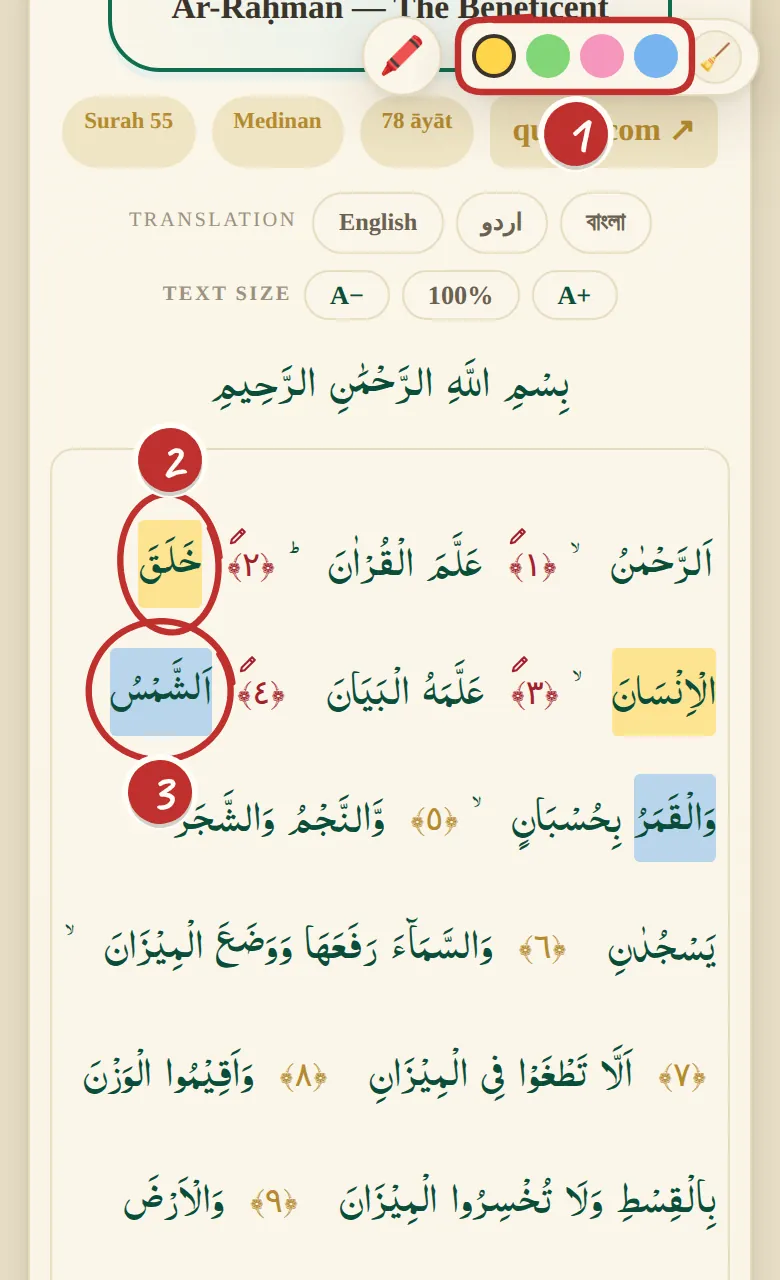
Recitation mode with a yellow highlight running across a line break and a blue highlight on another ayah

Recitation mode

…and highlight in the mushaf too

  1. Choose a colour.
  2. A yellow highlight can run across a line break.
  3. Blue on another ayah — mix colours however you like.

Mushaf highlights are kept separately from the ayah page, so you can mark one way while reciting and another while reflecting.

Open this in the journal ↗

The bottom bar

On every page: cover, Index, continue, bookmarks, notes and the ⋯ menu.

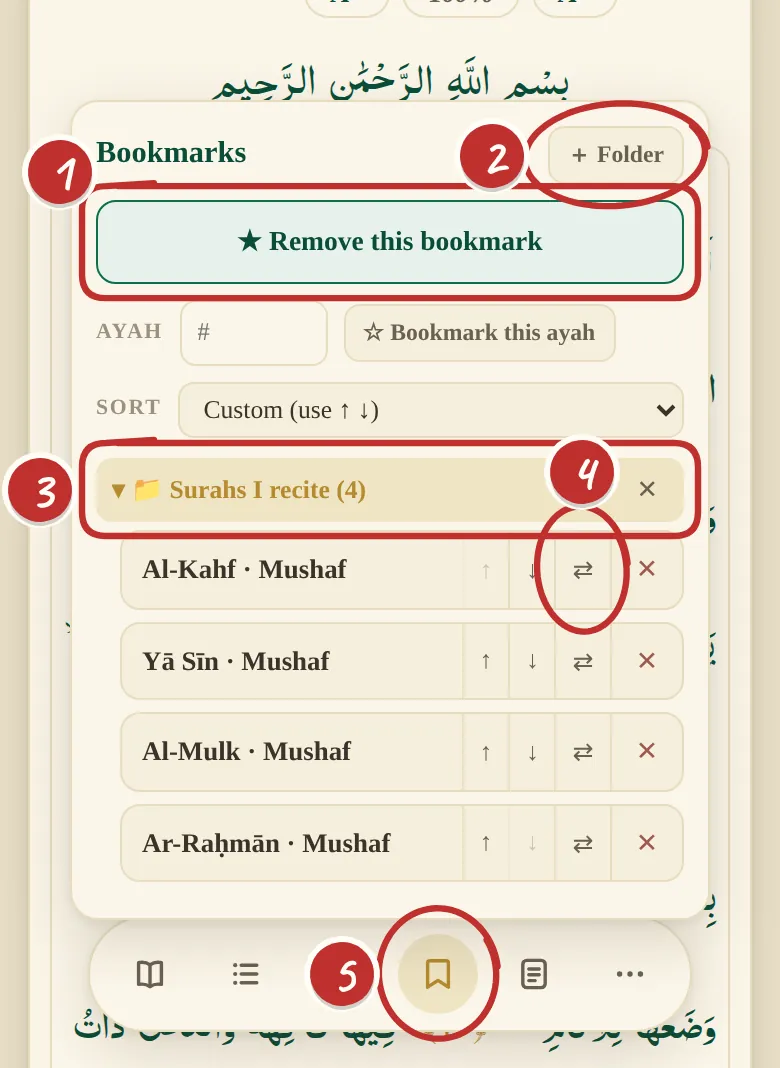
The bookmarks panel above the bottom bar, with a folder 'Surahs I recite' holding Al-Kahf, Yā Sīn, Al-Mulk and Ar-Raḥmān, and the bookmark button in the bar circled

The bottom bar

Bookmarks, in folders

Here, four surahs bookmarked in recitation mode and filed in a folder called "Surahs I recite".

  1. Bookmark this page (tap again to remove it), or bookmark one ayah by its number.
  2. + Folder to make a new one.
  3. The folder and its bookmarks — tap one to go there.
  4. Move a bookmark with ⇄. Sort your own way, by place in the Qur'an, or A–Z.
  5. How to get here: the bookmark button in the bottom bar, on every page.
Open this in the journal ↗
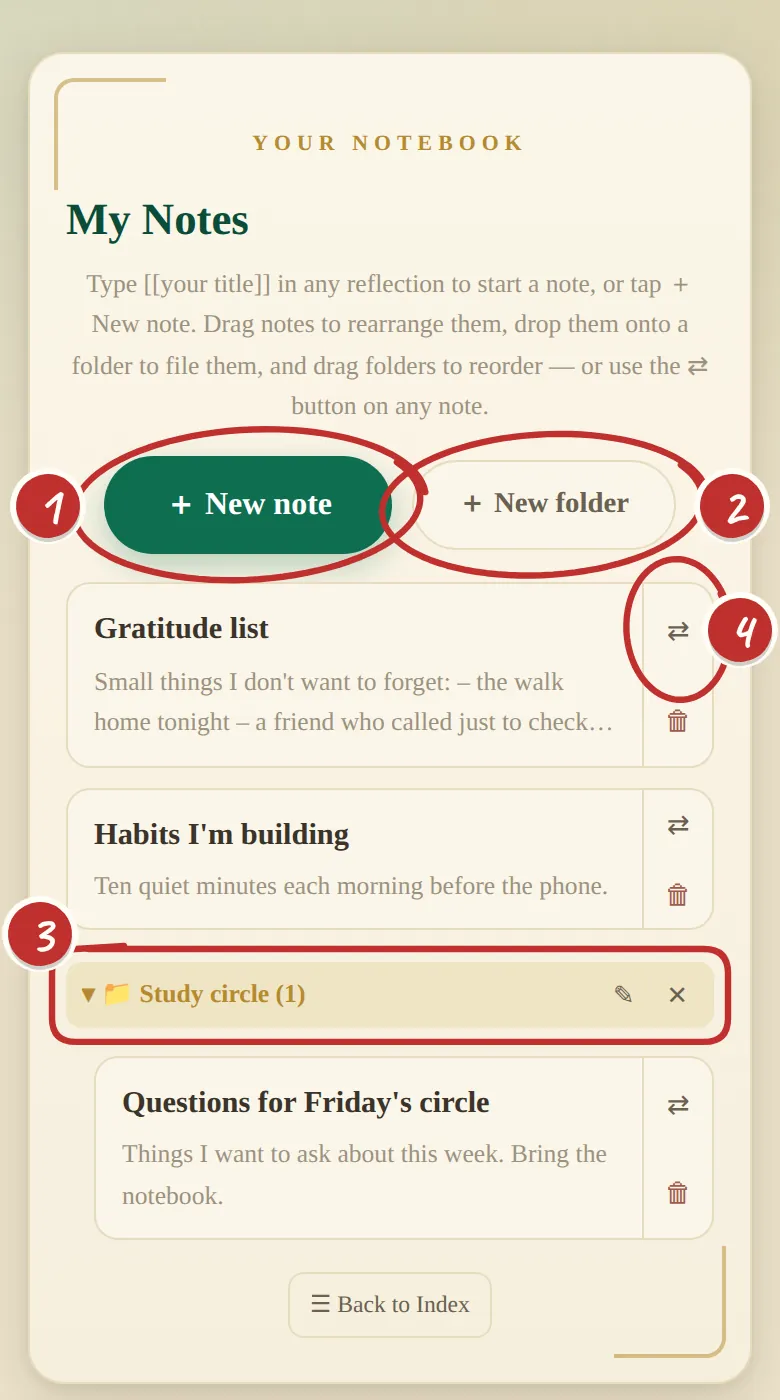
My Notes: New note and New folder buttons, a 'Study circle' folder and three notes

The bottom bar

My Notes — for thoughts bigger than one ayah

A gratitude list, questions for your study circle, habits you're building. Tap the notes button in the bottom bar.

  1. + New note.
  2. + New folder to keep them tidy.
  3. A folder — here, "Study circle".
  4. Move a note into a folder with ⇄, or just drag it.

Or type [[your title]] in any reflection to start a note.

Open this in the journal ↗
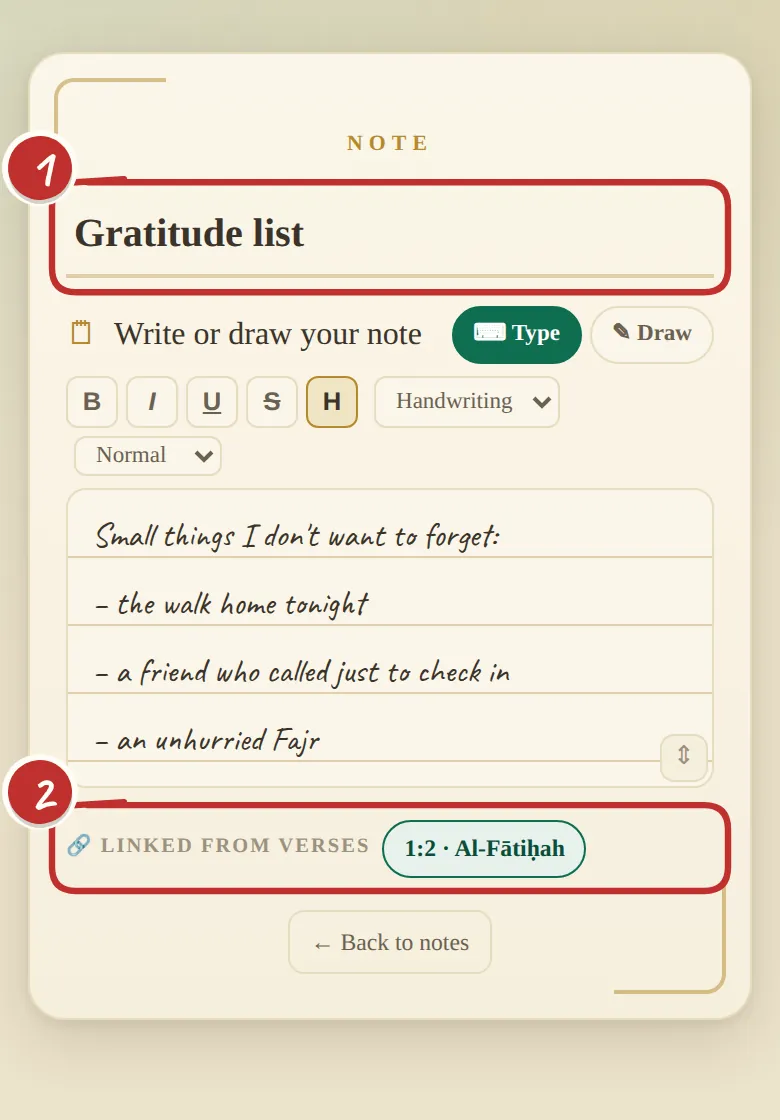
The 'Gratitude list' note with its 'Linked from verses' list

The bottom bar

The note remembers where it came from

  1. The title. Rename it, and every link to it updates too.
  2. Linked from verses — every ayah that mentions this note. Tap one to go back to it.
Open this in the journal ↗
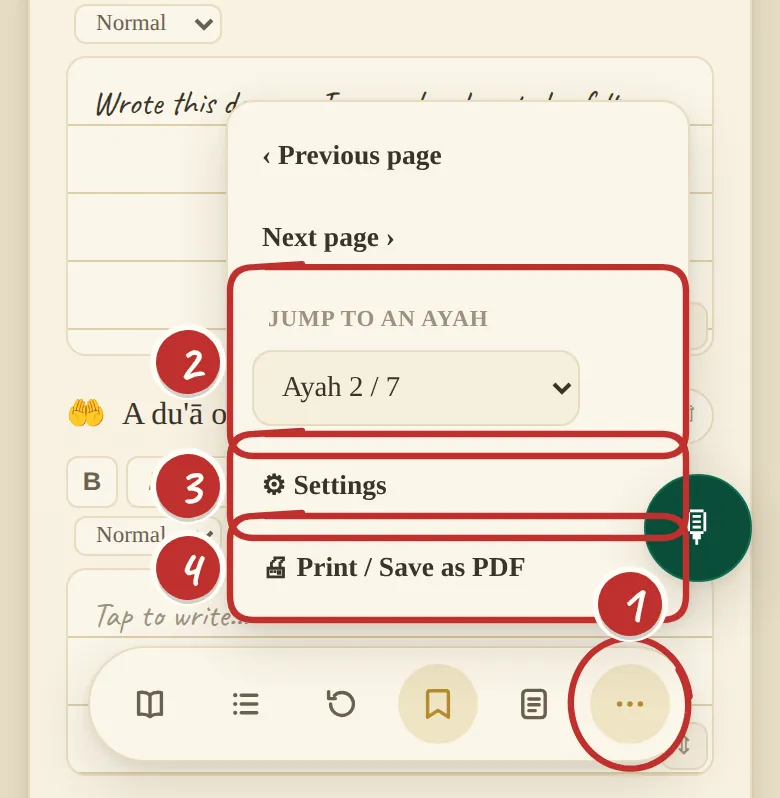
The ⋯ menu open: previous and next page, jump to an ayah, Settings, Print / Save as PDF

The bottom bar

The ⋯ menu

Everything else lives behind one button.

  1. Tap ⋯.
  2. Jump to an ayah — or straight to a surah's map.
  3. Settings.
  4. Print / Save as PDF — keep a paper copy of a page.
Open this in the journal ↗

Settings

⋯ → ⚙ Settings.

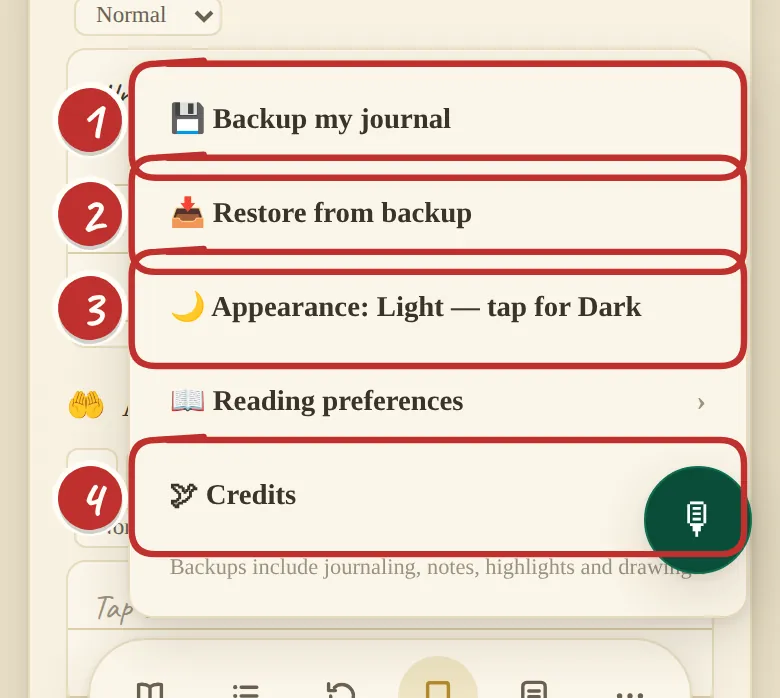
Settings: Backup my journal, Restore from backup, Appearance, Reading preferences, Credits

Settings

Back it up, restore it, make it yours

  1. Backup my journal — one file with your writing, notes, highlights and drawings.
  2. Restore from backup — open that file on a new phone and it's all back.
  3. Appearance — light or dark.
  4. Credits — where the text, translations and fonts come from.

Not using sync? Make a backup now and then — your journal lives on your device.

Open this in the journal ↗
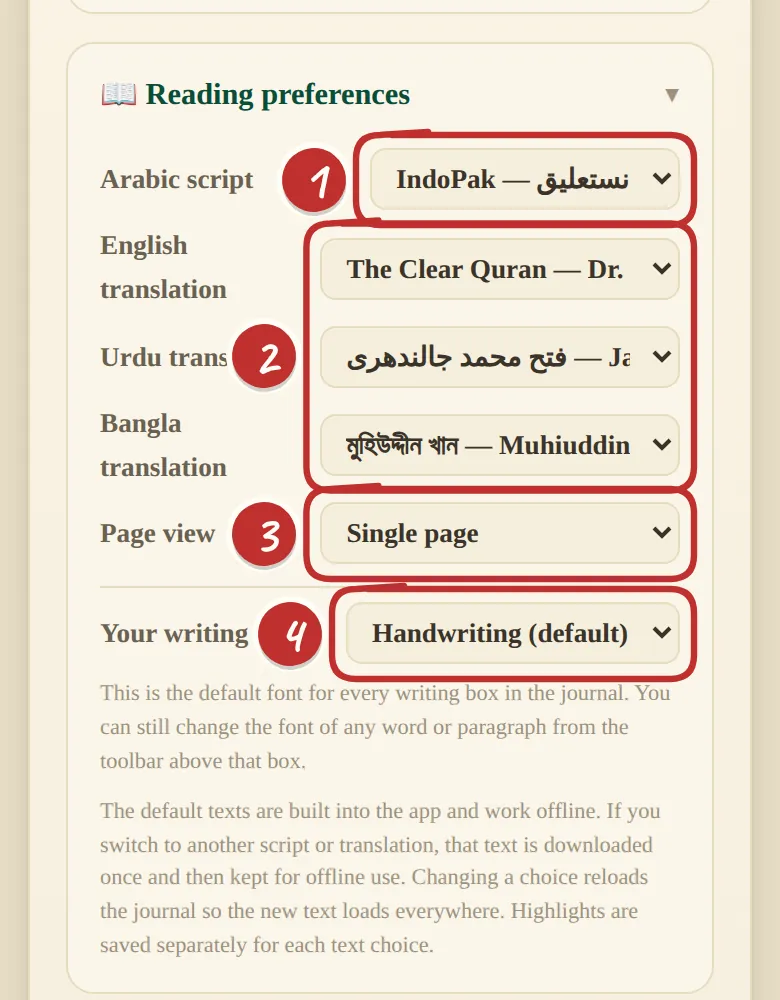
Reading preferences: Arabic script, translation editions, page view and writing font

Settings

Choose your script, translations and handwriting

Reading preferences — on the cover, or in ⚙ Settings.

  1. Arabic script — IndoPak or Uthmani.
  2. Two translations per language — English: Clear Quran or Ṣaḥīḥ; Urdu: Jalandhri or Junagarhi; Bangla: Muhiuddin Khan or Zohurul Hoque.
  3. Page view — one page, or two side by side on a wide screen.
  4. Writing font — handwriting by default, or six others.
Open this in the journal ↗
The journal in dark mode

Settings

Dark mode for night reading

Easy on the eyes after ʿIshāʾ or before Fajr. Turn it on in ⚙ Settings → Appearance, and switch back the same way.

Open this in the journal ↗

Three taps and you have started

Begin with one line

1 · Open it — ayahink.com/journal, in any browser, on any device.

2 · Pick a surah — any one. Al-Fātiḥa is a kind place to begin.

3 · Answer the prompt — one line is enough. It saves itself as you write.

Open the journal →